User Account Settings
A guide to managing your account settings, security, and financial information on TradePoint.
1. Introduction
Your TradePoint account settings allow you to manage three critical aspects of your account:
- Identity Verification (KYC) - Proving who you are to comply with regulations
- Two-Factor Authentication (2FA) - Adding an extra layer of security to protect your account
- Address Book - Managing the wallet addresses where you receive your asset proceeds
This guide will walk you through each of these features step-by-step in plain language, even if you’re not familiar with cryptocurrency or technical terms.
2. Identity Verification (KYC)
What is KYC?
KYC stands for “Know Your Customer.” It’s a security and regulatory requirement where you prove your identity to the platform. Think of it like opening a bank account - you need to show identification before you can use certain services.
Why is KYC Required?
- Regulatory Compliance: Financial platforms must verify who their users are to prevent fraud and money laundering
- Asset Security: It protects both you and the platform from unauthorized access
- Access to Features: You must complete KYC before you can receive distributed tokens or use automated selling features
Who Needs to Complete KYC?
Everyone who wants to:
- Receive distributed tokens
- Use automated selling features
- Withdraw proceeds from token sales
[!IMPORTANT] You cannot receive any distributed assets or proceeds until your identity is verified and approved.
Step-by-Step: How to Complete KYC
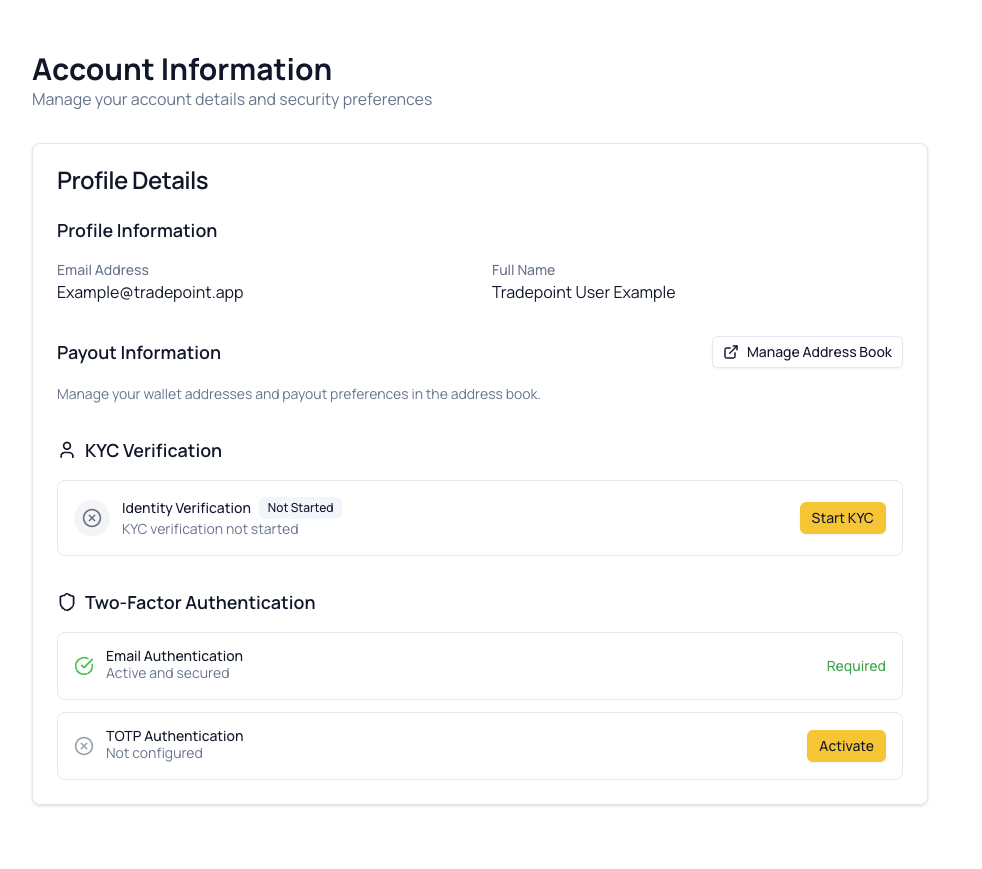
Step 1: Navigate to Identity Verification
- Log into your TradePoint account using your Google account
- Look for the main menu or dashboard
- On “Identity Verification” Click “Start KYC”
Step 2: Choose Your Verification Type
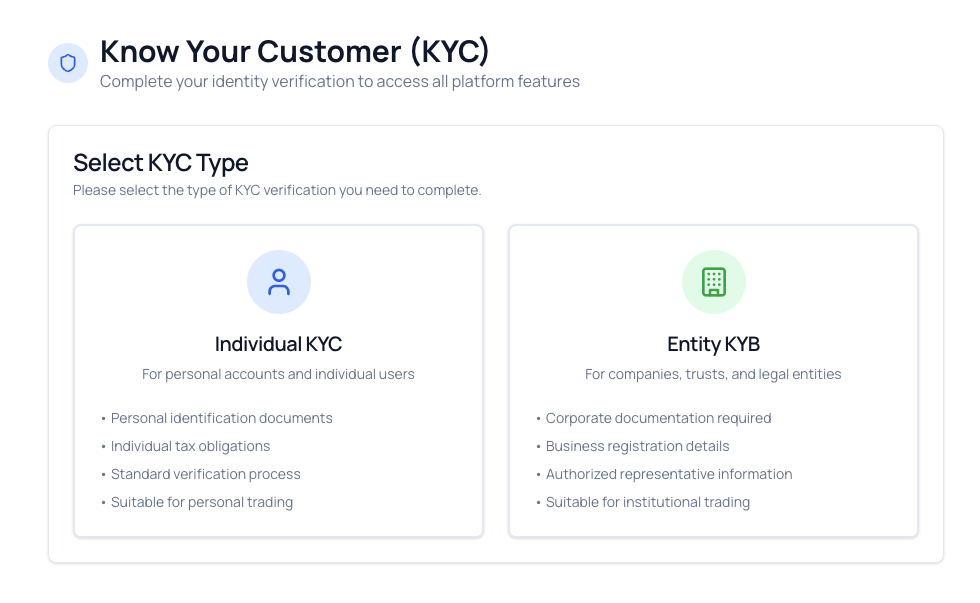
You’ll see two options:
Option A: Individual (Personal Account)
- Choose this if you’re verifying yourself as a person
- You’ll use your personal identification documents
- This is the most common choice for individual users
Option B: Entity (Business/Company Account)
- Choose this if you’re verifying on behalf of a company or organization
- You’ll need business registration documents
- Additional company information will be required
[!TIP] If you’re unsure which to choose: Are you receiving tokens personally or on behalf of a company? If personally, choose Individual.
Step 3: Provide Personal Information (Individual)
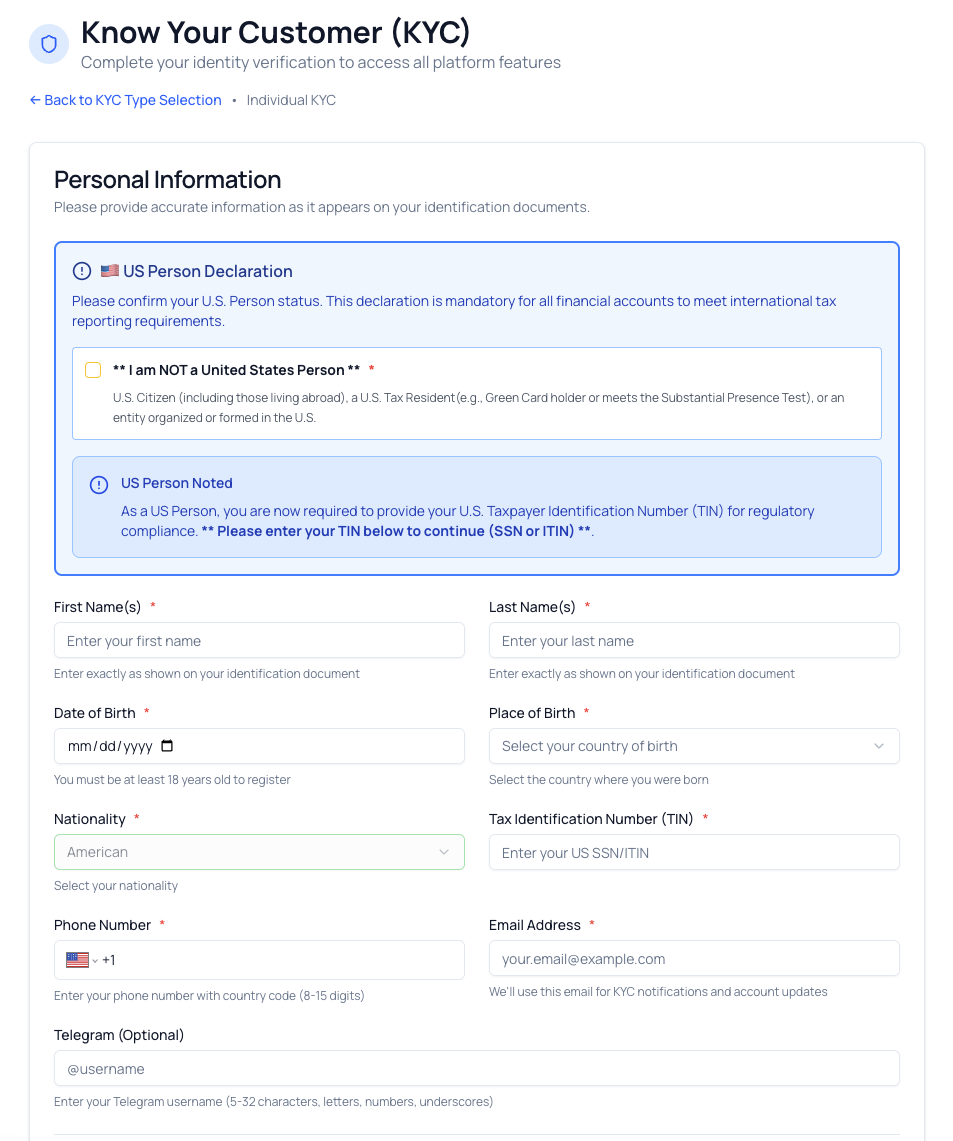
If you selected Individual, you’ll need to fill in:
Basic Information:
- Full Legal Name - Must match your ID exactly (including middle names)
- Date of Birth - Use the format shown (usually DD/MM/YYYY or MM/DD/YYYY)
- Nationality - Your citizenship country
- Country of Residence - Where you currently live
Contact Information:
- Email Address - Usually pre-filled from your Google account
- Phone Number - Include country code (e.g., +1 for USA, +44 for UK)
Address Details:
- Street Address - Your current residential address
- City - Your city or town
- State/Province - If applicable
- Postal/ZIP Code - Your postal code
- Country - Your country of residence
[!CAUTION] Make sure all information matches your identification documents exactly. Even small differences (like “Bob” vs “Robert”) can cause your verification to be rejected.
Step 3B: Provide Entity Information (Business)
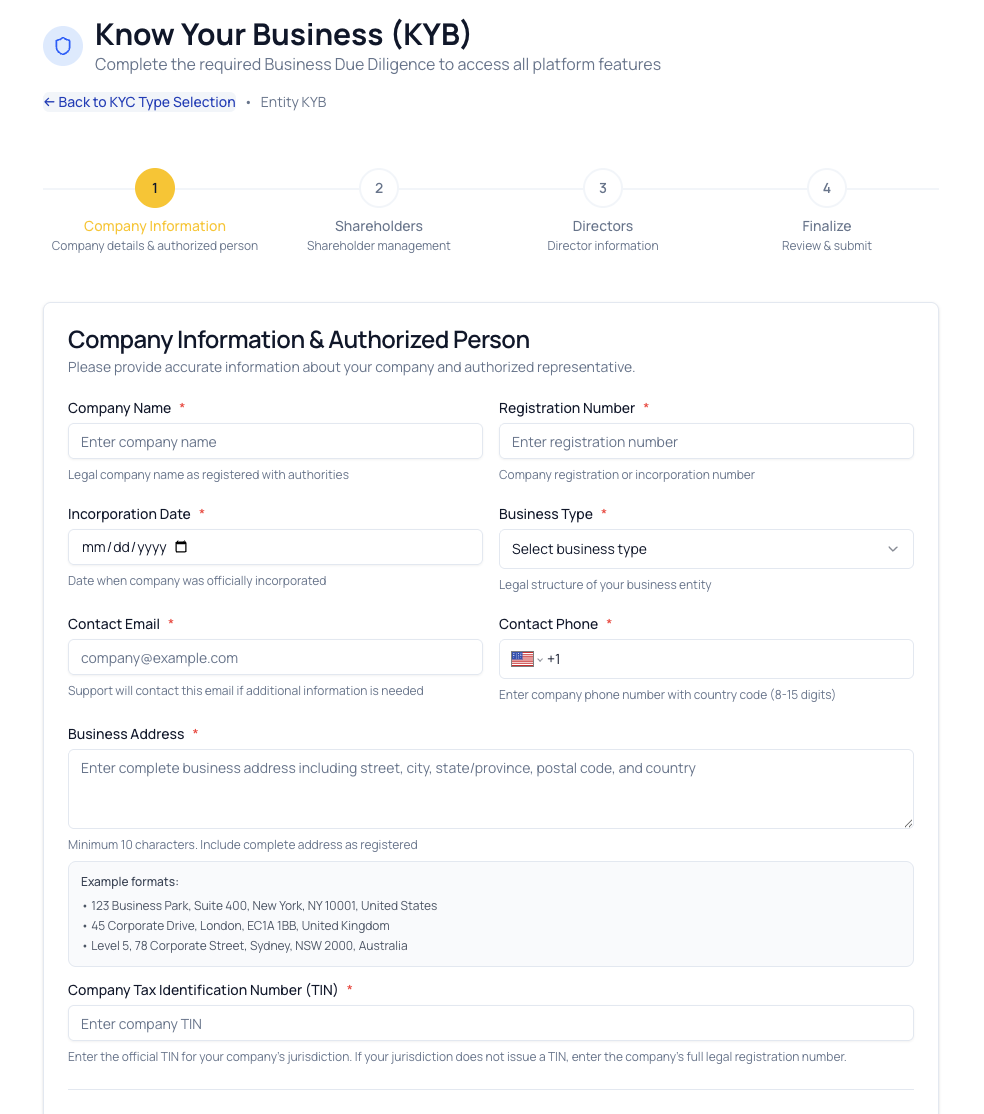
If you selected Entity, you’ll need to provide:
Company Information:
- Registered Company Name - Official legal name
- Business Type - (e.g., LLC, Corporation, Partnership)
- Registration Number - Company registration or tax ID number
- Date of Incorporation - When the company was officially registered
- Country of Incorporation - Where the company is registered
Company Address:
- Registered Office Address - Official business address
- City, State, Postal Code, Country
Representative Information:
- Your Name - The person submitting on behalf of the company
- Your Position - Your title/role in the company
- Your Contact Information
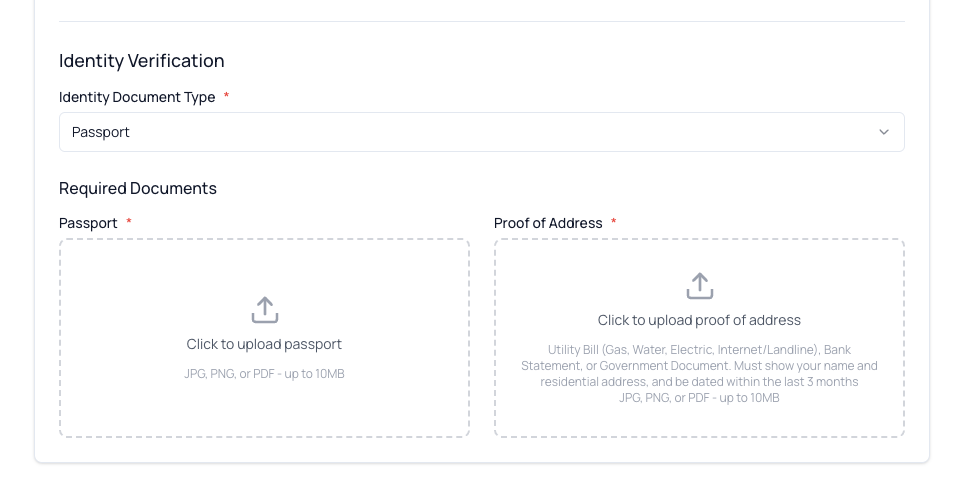
Step 4: Upload Identification Documents
This is the most important part. You’ll need to provide clear, readable photos or scans of your documents.
For Individuals, you need TWO types of documents:
Document Type 1: Government-Issued Photo ID
Choose ONE of the following:
- Passport (recommended - easiest to verify)
- National Identity Card (both front and back)
Document Type 2: Proof of Address
Must be dated within the last 3 months. Choose ONE of the following:
- Utility Bill (electricity, water, gas, internet)
- Bank Statement
- Government Letter (tax document, official correspondence)
- Rental Agreement (signed and current)
[!IMPORTANT] Your proof of address must clearly show:
- Your full name
- Your complete residential address
- The issue date (must be within last 3 months)
- The issuer (company or government agency)
For Entities, you need ADDITIONAL documents:
- Certificate of Incorporation or business registration
- Articles of Association or Operating Agreement
- Proof of Business Address (utility bill or bank statement for the company)
- ID of Company Representative (your personal ID)
How to Take Good Document Photos
Follow these tips to avoid rejection:
✅ DO:
- Use good lighting (natural daylight works best)
- Place the document on a flat, contrasting surface (e.g., dark document on white background)
- Ensure all four corners of the document are visible
- Make sure all text is clear and readable
- Take photos directly from above (not at an angle)
- Use a camera with at least 5MP resolution (most modern phones are fine)
- Save in common formats: JPG, PNG, or PDF
❌ DON’T:
- Use flash (it can create glare)
- Take blurry or out-of-focus photos
- Cover any part of the document with your fingers
- Edit or alter the document in any way
- Use photocopies (must be original documents)
- Submit expired documents
[!NOTE] [PLACEHOLDER: Side-by-side comparison showing good vs bad document photos]
Step 5: Upload Your Documents
- Click “Choose File” or “Browse” next to each document type
- Select the photo or scan from your computer or phone
- Wait for the upload to complete (you’ll see a checkmark or progress bar)
- Review the uploaded image - can you read all the text clearly?
- If not clear, delete and upload a better photo
File Requirements:
- Maximum file size: Usually 10MB per file
- Accepted formats: JPG, JPEG, PNG, PDF
- Multiple pages: If your document has multiple pages (like a passport), you may need to upload each page separately or combine them into one PDF
Step 6: Review and Submit
- Double-check everything:
- Is all information spelled correctly?
- Do your uploaded documents match the information you entered?
- Are all required fields completed?
- Can you clearly read all uploaded documents?
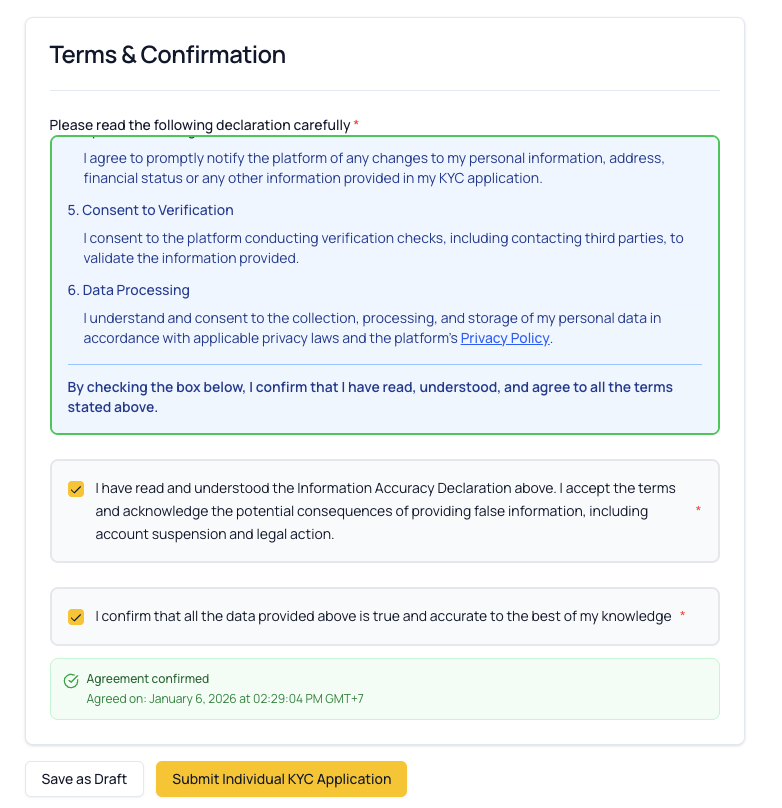
- Read the declaration (if shown) - This usually states that:
- All information provided is accurate
- Documents are genuine and unaltered
- You understand the platform’s terms
- Click “Submit Individual KYC Application”
- You’ll see a confirmation message that your documents have been received
Step 7: Wait for Review
What happens next:
- Submission Received: Your documents enter the review queue
- Under Review: An administrator will carefully check your documents (usually takes 1-3 business days)
- Decision: You’ll be notified of the outcome
You’ll see one of these statuses:
✅ Approved: Your identity is verified! You can now use all platform features.
⚠️ Pending: Still under review. Be patient and check back later.
❌ Rejected: Something was wrong with your submission. You’ll receive a message explaining why.
Common rejection reasons:
- Documents are blurry or unreadable
- Information doesn’t match between form and documents
- Documents are expired
- Proof of address is older than 3 months
- Photo ID doesn’t clearly show your face
- Documents appear to be edited or tampered with
If rejected:
- Read the rejection reason carefully
- Fix the specific issue mentioned
- Resubmit your verification with corrected information/documents
 Approved KYC Verification
 Under Review KYC Verification
 Rejected KYC Verification
What If I Need to Update My Information?
After approval:
- Your verified information generally cannot be changed directly by you
- Contact your system administrator if your details have changed (e.g., you moved to a new address)
- You may need to submit new documents to verify the updated information
3. Two-Factor Authentication (2FA)
What is Two-Factor Authentication?
Two-Factor Authentication (2FA) adds an extra layer of security to your account. Instead of just using your password (something you know), you also need your phone (something you have).
Think of it like your bank’s ATM: you need both your card (something you have) and your PIN (something you know).
Why Use 2FA?
- Protect Your Assets: Cryptocurrency and distributed tokens are valuable - 2FA prevents unauthorized access
- Required for Sensitive Actions: You must enable 2FA before you can add or manage wallet addresses
- Peace of Mind: Even if someone steals your password, they can’t access your account without your phone
[!IMPORTANT] You must enable 2FA before you can use the Address Book to add withdrawal addresses.
What You’ll Need
Before you begin, you need:
- Your TradePoint account (logged in)
- A smartphone (iPhone or Android)
- An authenticator app installed on your phone:
- Google Authenticator (recommended, free)
- Authy (free, has cloud backup)
- Microsoft Authenticator (free)
- 1Password (paid, includes password manager)
[!TIP] We recommend Google Authenticator or Authy - they’re free, secure, and easy to use.
Step-by-Step: Installing an Authenticator App
If you don’t already have an authenticator app:
For iPhone:
- Open the App Store
- Search for “Google Authenticator” or “Authy”
- Tap “Get” then “Install”
- Open the app once installed
For Android:
- Open the Google Play Store
- Search for “Google Authenticator” or “Authy”
- Tap “Install”
- Open the app once installed
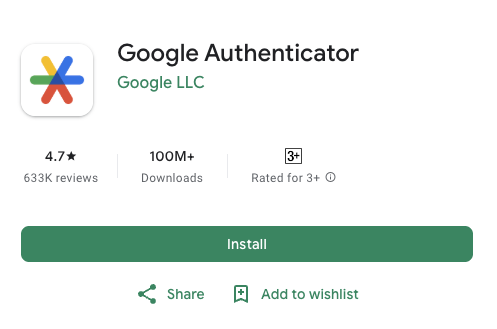
Download from: Google Play Store
Step-by-Step: Setting Up 2FA on TradePoint
Step 1: Navigate to Account Settings
- Log into your TradePoint account
- Click on your profile icon or “Account” in the menu
- Look for “Security” or “Two-Factor Authentication” section
[!NOTE] [PLACEHOLDER: Screenshot showing where to find the Security/2FA section]
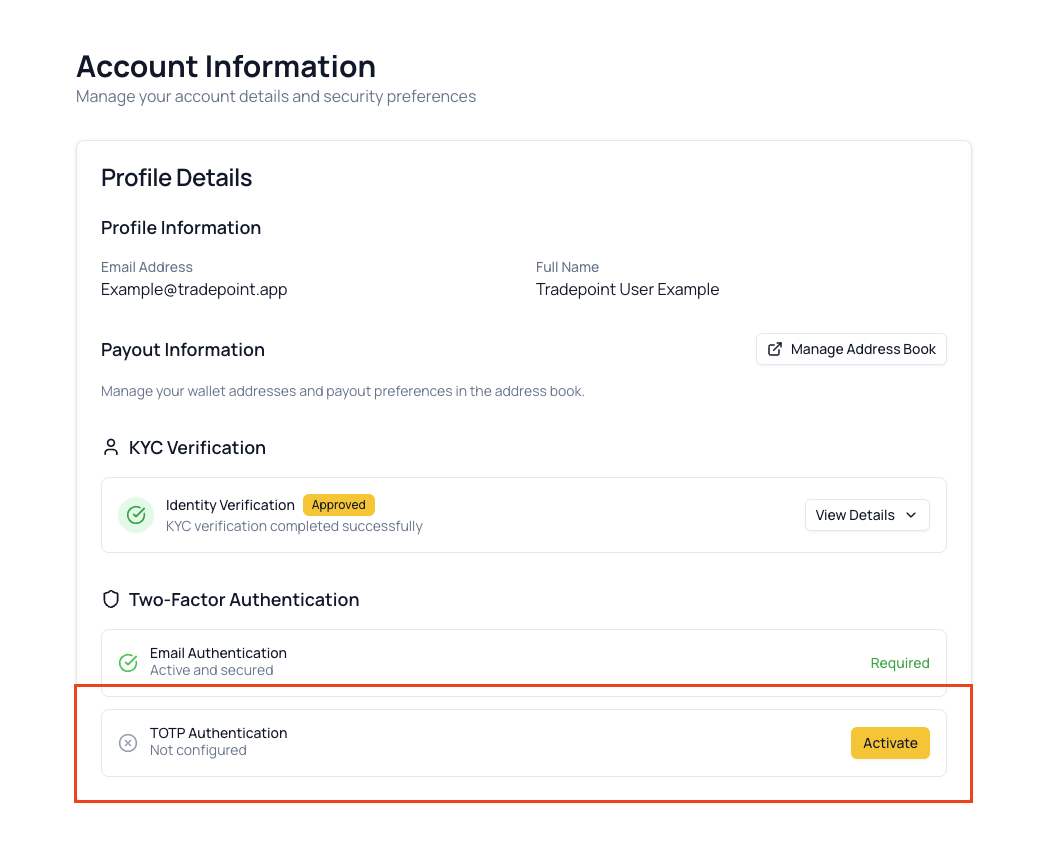
Step 2: Start Activation
- Find the “Two-Factor Authentication” or “TOTP Authentication” section
- You’ll see a status showing “Not Enabled” or “Inactive”
- Click the “Activate” or “Enable 2FA” button
Step 3: Scan the QR Code
A popup window will appear showing:
- A QR code (a square black-and-white pattern)
- A secret key (a long string of letters and numbers)
To link your authenticator app:
- Open your authenticator app on your phone
- In the app, tap the “+” button or “Add account”
- Choose “Scan QR code” or “Scan barcode”
- Point your phone’s camera at the QR code on your computer screen
- Your phone will beep or vibrate when it successfully scans
Alternative method (if camera doesn’t work):
- In your authenticator app, choose “Enter key manually”
- Give it a name: “TradePoint”
- Type in the secret key exactly as shown (or copy and paste it)
- Ensure “Time-based” is selected
- Tap “Add” or “Done”
[!TIP] Save the secret key! Write it down and store it in a safe place. If you lose your phone, you’ll need this key to restore your 2FA.
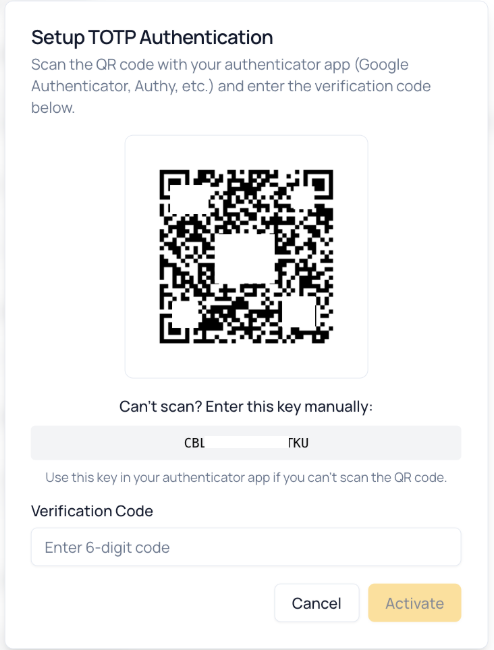
Step 4: Enter the Verification Code
After scanning the QR code, your authenticator app will immediately start showing:
- “TradePoint” (or whatever name you gave it)
- A 6-digit code (e.g., 123 456)
- A countdown timer (usually 30 seconds)
To complete setup:
- Look at the 6-digit code in your authenticator app
- Type this code into the “Verification Code” or “Enter Code” box on TradePoint
- Click “Activate” or “Confirm”
[!CAUTION] The code changes every 30 seconds! If it’s about to expire (timer almost at zero), wait for the new code and use that instead.
Step 5: Success!
If the code was correct, you’ll see:
- ✅ A success message
- Your 2FA status changes to “Active” or “Enabled”

Using 2FA When Logging In
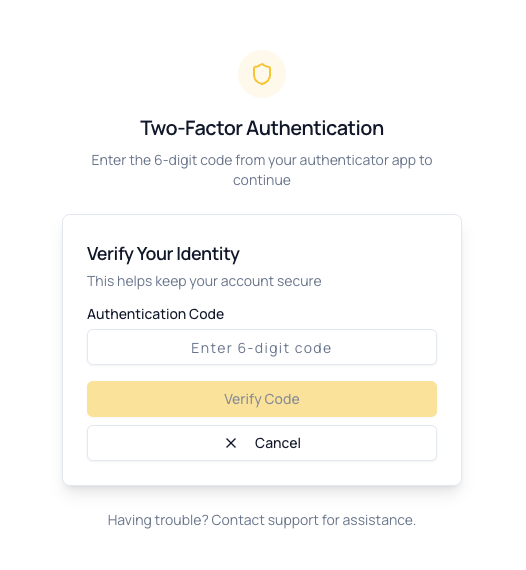
Once 2FA is enabled, you’ll need to provide a code every time you log in:
- Click “Sign in with Google”
- After successful login, you’ll see a “Enter 2FA Code” screen
- Open your authenticator app
- Find “TradePoint” in your list
- Type the current 6-digit code
- Click “Verify Code”
- You’re logged in!
[!TIP] The code changes every 30 seconds
What If I Lose My Phone?
Option 1: Use the Secret Key
- If you saved the secret key from setup, enter it manually into your authenticator app on a new phone
- Your codes will work again
Option 2: Contact Support
- If you have not the secret key, contact your system administrator
- They can disable 2FA for you, but will need to verify your identity first
- This process may take several days for security reasons
[!CAUTION] Always save your secret key Without them, losing your phone means losing access to your account.
Disabling 2FA
If you need to temporarily disable 2FA (not recommended). You need to contact your system administrator. They can disable 2FA for you, but will need to verify your identity first
[!WARNING] Disabling 2FA makes your account less secure. You also won’t be able to manage your Address Book without 2FA enabled.
4. Address Book Management
What is the Address Book?
The Address Book is where you store the cryptocurrency wallet addresses where you want to receive your asset proceeds (money from sold tokens or distribute tokens).
Think of it like adding your bank account number to your employer’s payroll system - you need to tell TradePoint where to send your money.
Why is Address Book Important?
- Receive Proceeds: You can only receive withdrawals at addresses saved in your Address Book
- Security: The verification process ensures you actually own the addresses you add
- Organization: You can save multiple addresses and label them (e.g., “My Ledger,” “Binance Account”)
[!IMPORTANT] You must have 2FA enabled before you can add or remove addresses.
What You’ll Need
Before adding an address:
- 2FA Enabled - You must complete 2FA setup first (see previous section)
- A Cryptocurrency Wallet - Where you want to receive funds (e.g., hardware wallet, exchange account)
- The Wallet Address - The specific address on the correct blockchain network
- Proof of Ownership - A screenshot from your wallet or exchange showing the address
Understanding Wallet Addresses
What is a wallet address? A wallet address is like your account number in the cryptocurrency world. It’s a long string of letters and numbers that identifies where funds should be sent.
Example addresses (these are fake, for illustration only):
- Ethereum:
0x742d35Cc6634C0532925a3b844Bc454e4438f44e - Bitcoin:
1A1zP1eP5QGefi2DMPTfTL5SLmv7DivfNa - Solana:
7xKXtg2CW87d97TXJSDpbD5jBkheTqA83TZRuJosgAsU
[!CAUTION] Different cryptocurrencies use different address formats. Sending to the wrong network will result in permanent loss of funds!
Step-by-Step: Adding a New Address
Step 1: Access the Address Book
- Log into TradePoint
- Go to “Account”
- Look for the “Payout Information” section
- Click “Manage Address Book”
[!NOTE] If you see a message saying “2FA Required,” you need to enable Two-Factor Authentication first (see Section 3).
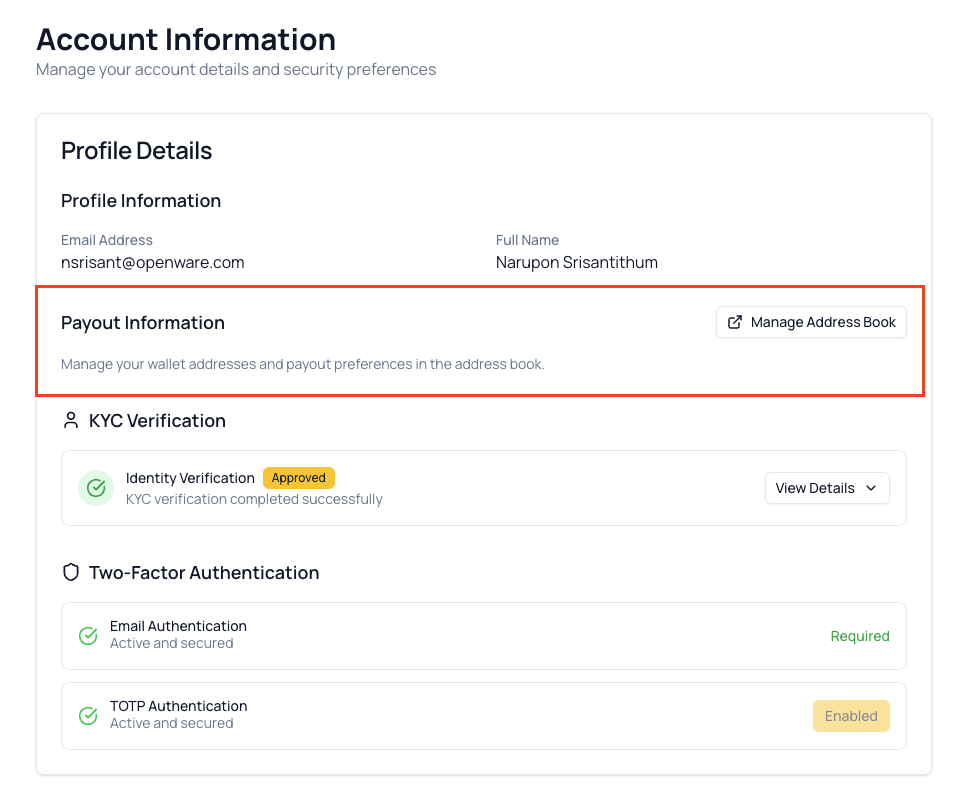 Access to Address Book
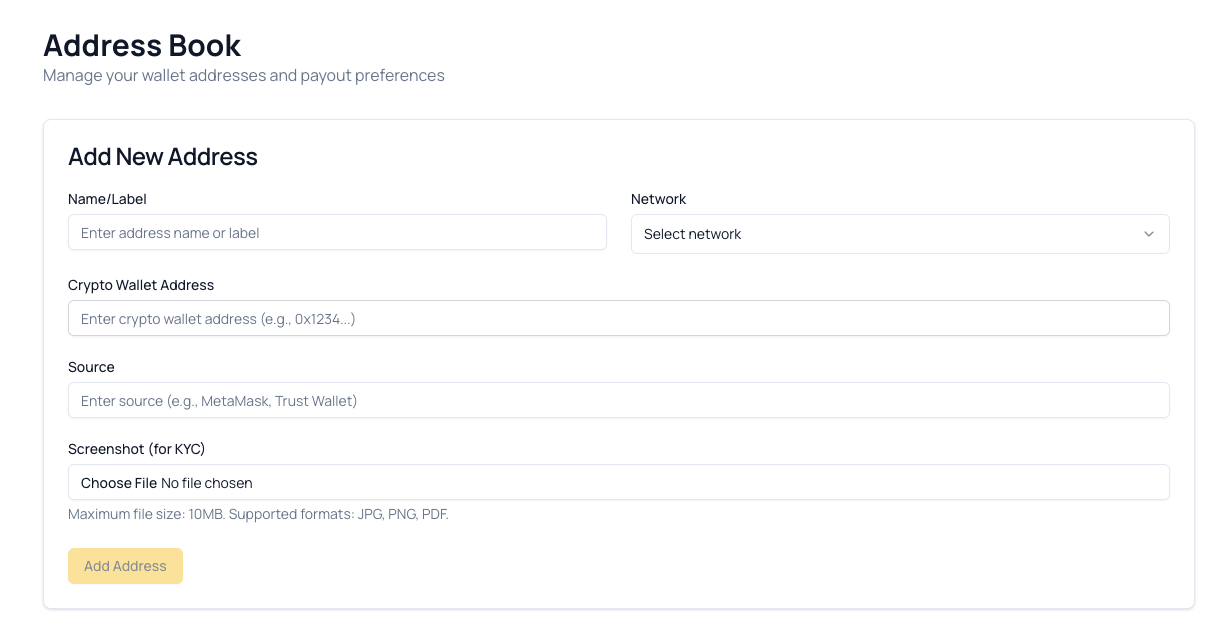 Address Book Page
Step 2: Fill in the Address Details
Field 1: Name/Label
- What it is: A nickname for this address so you can recognize it
- Example: “My Ledger Wallet,” “Binance Account,” “MetaMask Main”
- Tips: Use a name that helps you remember where this address is
Field 2: Network
- What it is: The blockchain network for this address
- How to choose: Select from the dropdown menu
- Common options:
- Ethereum (ETH)
- Bitcoin (BTC)
- Solana (SOL)
- Polygon (MATIC)
- Binance Smart Chain (BSC)
- And others…
[!CAUTION] Make absolutely sure you select the correct network! For example, if you have a Polygon wallet, select “Polygon” - if you select “Ethereum” by mistake, the funds could be lost.
Field 3: Address
- What it is: The actual wallet address where you want to receive funds
- How to get it: Copy it directly from your wallet or exchange
- Format: A long string of letters and numbers
- Validation: As you type or paste, the system will check if the format is correct for the selected network
Validation indicators:
- ✅ Green checkmark: Address format is valid for the selected network
- ❌ Red X or warning: Address format doesn’t match the network, or contains errors
[!TIP] Always copy and paste addresses - never type them manually. One wrong character means lost funds!
Field 4: Source
- What it is: Where this address is from
- Example: “Ledger,” “Binance,” “MetaMask,” “Coinbase,” “Trust Wallet”
- Tips: This helps identify which wallet or exchange this address belongs to
Field 5: Tag/Memo (if required)
- What it is: An additional identifier required by some networks
- When needed: Only for certain cryptocurrencies like XRP, EOS, or some exchange deposits
- How to get it: Your wallet or exchange will provide this along with your address
- Example: A number like
123456789
[!IMPORTANT] If your network requires a Tag/Memo and you don’t provide it, funds sent to this address may be lost forever! Always check with your wallet/exchange.
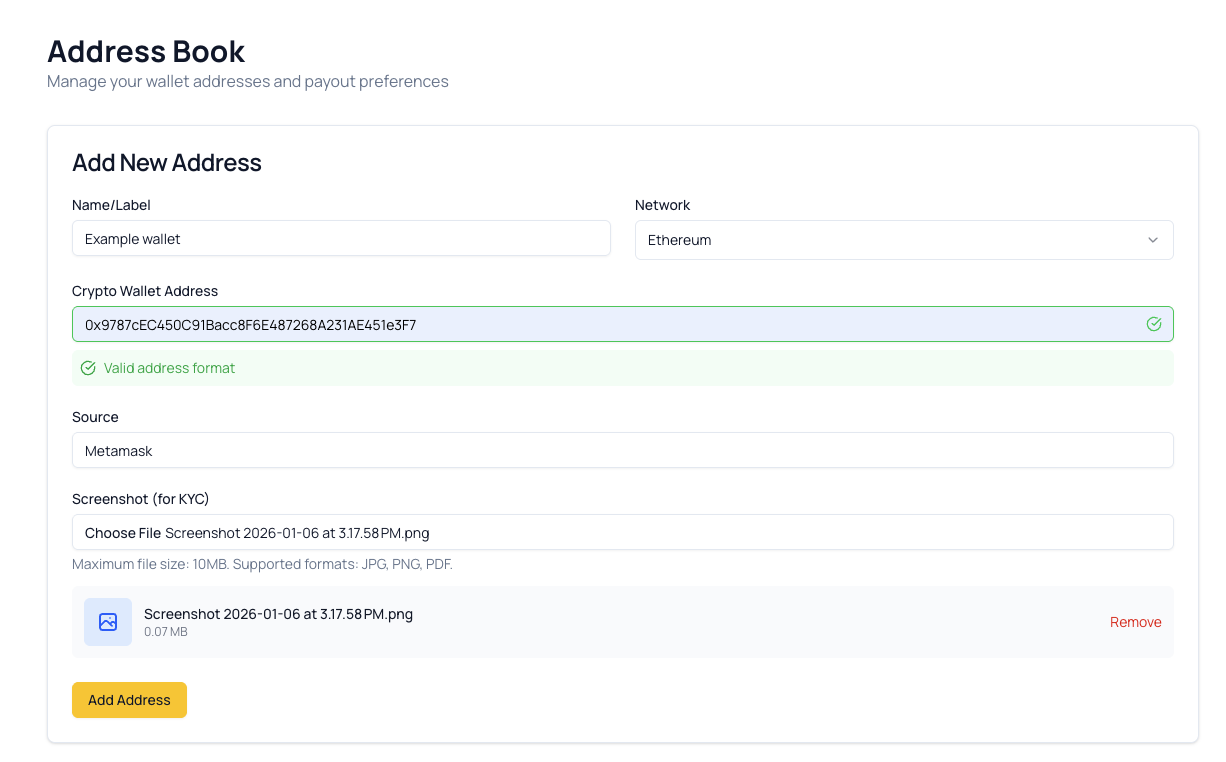
Step 4: Upload Proof of Ownership
This is a critical security step. You must prove that you actually own or control the address you’re adding.
What to upload: A screenshot from your wallet or exchange that clearly shows:
- ✅ The address (matching what you entered)
- ✅ Your account name or email (showing it’s your account)
- ✅ The network name (confirming correct blockchain)
How to take a screenshot:
On iPhone:
- Press Side button + Volume Up at the same time
- Screenshot saves to Photos
On Android:
- Press Power button + Volume Down at the same time
- Screenshot saves to Gallery
On Windows:
- Press Windows key + Shift + S
- Select the area, screenshot saves to clipboard
On Mac:
- Press Command + Shift + 4
- Click and drag to select area
Example - What your screenshot should show:
From a hardware wallet like Ledger:
- The Ledger Live app with the address visible
- The account name at the top
From an exchange like Binance:
- The deposit page showing the address
- Your email or account name visible in the corner
From MetaMask:
- The wallet with the address displayed
- Your account name/number visible
[!TIP] You can use image editing to blur out sensitive information (like your balance), but never blur the address itself or your account identifier.
To upload:
- Click “Choose File” or “Browse” in the “Proof of Ownership” section
- Select your screenshot
- Wait for upload to complete
- You should see a thumbnail preview
Step 5: Review Your Information
Before submitting, carefully check:
| What to Check | Why It Matters |
|---|---|
| Address is correct | Wrong address = lost funds |
| Network matches your wallet | Wrong network = lost funds |
| Tag/Memo included (if needed) | Missing tag = lost funds on some networks |
| Screenshot is clear | Blurry screenshots will be rejected |
| Screenshot shows the same address | Mismatch will be rejected |
[!CAUTION] Triple-check your address! Once funds are sent to the wrong address, they cannot be recovered. This is the most important step.
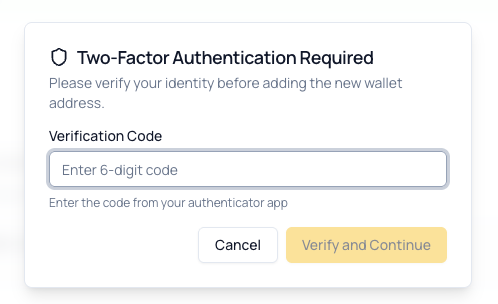
Step 6: Submit and Verify with 2FA
- Click “Add Address” button
- A 2FA verification popup will appear
- Open your authenticator app on your phone
- Find the 6-digit code for TradePoint
- Enter the code in the popup
- Click “Confirm” or “Verify”
Step 7: Confirmation
If successful:
- ✅ You’ll see a success message
- ✅ The address appears in your Address Book list
If there’s an error:
- ❌ Read the error message carefully
- Common issues:
- Invalid 2FA code (code expired - try again with fresh code)
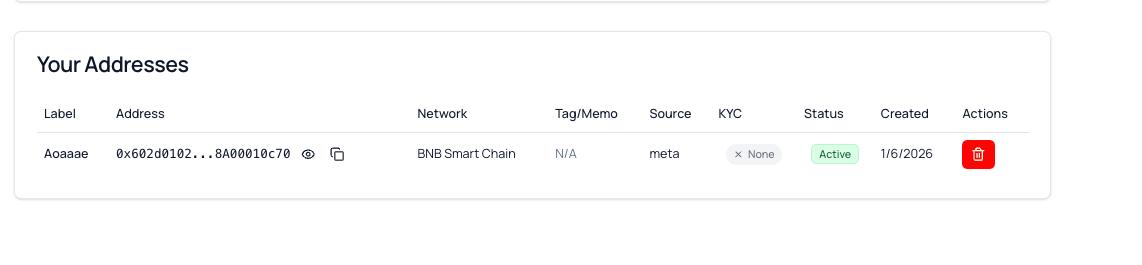
Viewing Your Saved Addresses
Your Address book will show all saved addresses with:
- Label/Name: The nickname you gave it
- Network: Which blockchain
- Address: The wallet address (usually shortened like
0x742d...f44e) - Status: Verified, Pending Review, etc.
- Actions: Delete button (trash can icon)
Step-by-Step: Removing an Address
If you need to delete an address (e.g., you no longer use that wallet):
Step 1: Find the Address
- Go to your Address Book
- Locate the address you want to remove
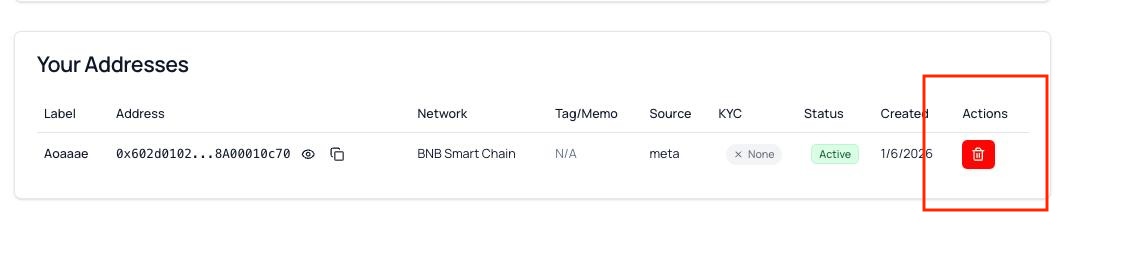
Step 2: Click Delete
- Click the trash can icon button next to the address
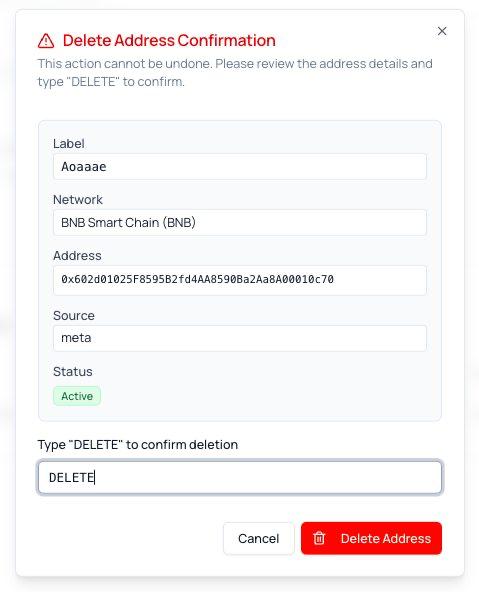
- A confirmation popup will appear
Step 3: Confirm Deletion
The confirmation popup will ask you to:
- Type “DELETE” (in all caps) in the text box
- Enter your 6-digit 2FA code from your authenticator app
- Click “Confirm Deletion”
[!WARNING] This action cannot be undone! If you delete an address and want to use it again later, you’ll need to add it again with a new proof screenshot.
Step 4: Deletion Complete
- ✅ Success message appears
- ✅ Address is removed from your list
Common Address Book Questions
Q: How many addresses can I add? A: Most platforms allow multiple addresses per network. Check with your administrator for specific limits.
Q: Can I edit an address after adding it? A: No, for security reasons you cannot edit an address. You must delete it and add the corrected address.
Q: How long does address verification take? A: Usually instant if the proof screenshot is clear. Some platforms may require manual admin review (1-2 business days).
Q: Can I add someone else’s address? A: While technically possible, this is not recommended. You should only add addresses you personally control. The proof screenshot must show it’s your account.
Q: What if I enter the wrong address? A: Delete it immediately and add the correct address. If funds have already been sent to a wrong address, contact support immediately (though recovery may not be possible).
Q: Do I need a different address for each token? A: Not necessarily. For example, one Ethereum address can receive multiple ERC-20 tokens. Check with your wallet provider.
5. Profile Information
Your profile shows basic information about your account:
What You Can See
- Email Address: The Google account email you use to log in
- Full Name: Your registered name
- Account Status: Active, Pending Verification, etc.
- KYC Status: Verified, Pending, Incomplete
- 2FA Status: Enabled or Disabled
What You Cannot Change Yourself
For security reasons, most profile information is set by your administrator and cannot be changed directly:
- Email address
- Full name
- Disable TOTP Authentication
How to Update Profile Information
If your information needs to be updated (e.g., you changed your name, moved to a new address):
- Contact your system administrator or support team
- Explain what needs to be changed and why
- Provide supporting documentation (e.g., legal name change document, new utility bill for address change)
- Wait for administrator approval - they may need to update your KYC information as well
6. Troubleshooting
KYC Issues
Problem: My KYC was rejected
- Solution: Read the rejection reason carefully. Common fixes:
- Take clearer photos with better lighting
- Ensure documents are not expired
- Make sure your proof of address is recent (within 3 months)
- Double-check that names and addresses match exactly across all documents
Problem: I can’t upload my documents
- Solution:
- Check file size (usually max 10MB)
- Use JPG, PNG, or PDF format
- Try a different browser
- Clear your browser cache
- Try from a different device
Problem: My verification is taking too long
- Solution:
- Most verifications take 1-3 business days
- If it’s been longer, contact your administrator
- Check your email for any requests for additional information
2FA Issues
Problem: My 2FA code doesn’t work
- Solution:
- Make sure you’re using the current code (not an expired one)
- Check that your phone’s time is set to automatic (Settings > Date & Time > Automatic)
- Ensure you’re looking at the right account in your authenticator app
- Try the next code if the current one is about to expire
Problem: I lost my phone
- Solution:
- If you saved your secret key, install the authenticator app on a new device and enter the key manually
- If you have neither, contact your administrator (this may take several days to resolve)
Problem: I can’t scan the QR code
- Solution:
- Make sure your phone’s camera has permission to access the camera
- Try holding your phone at different distances
- Make your screen brighter
- Use the “Enter key manually” option instead
Address Book Issues
Problem: I can’t add addresses (2FA Required message)
- Solution: You must enable 2FA first. See Section 3 for instructions.
Problem: Address validation fails
- Solution:
- Double-check that you selected the correct network
- Make sure you copied the entire address (no extra spaces, no missing characters)
- Some addresses are case-sensitive
- Verify the address directly from your wallet/exchange
Problem: My proof screenshot was rejected
- Solution: Your screenshot must clearly show:
- The exact address you’re adding
- Your account name or identifier
- The network name
- No blur or obstruction on the address itself
Problem: I added the wrong address
- Solution:
- Delete the incorrect address immediately
- Add the correct address
- If funds were already sent, contact support urgently (recovery may not be possible)
7. Security Best Practices
Protect Your Account
✅ DO:
- Enable 2FA as soon as possible
- Use a strong, unique password for your Google account
- Save your 2FA secret key separately
- Log out when using shared computers
- Regularly review your Address Book for unauthorized addresses
- Keep your phone and authenticator app secure with a PIN or biometric lock
- Use official wallet apps (download only from official sources)
- Double-check addresses before submitting withdrawals
- Contact support immediately if you notice suspicious activity
❌ DON’T:
- Share your 2FA codes with anyone (TradePoint staff will never ask for them)
- Share your authenticator app secret key
- Save your backup codes on your phone or in cloud storage
- Use the same password across multiple services
- Take screenshots of your 2FA codes and share them
- Add addresses you don’t personally control
- Click suspicious links in emails claiming to be from TradePoint
- Install authenticator apps from unofficial sources
Recognize Phishing Attempts
TradePoint will NEVER:
- Ask for your password via email or chat
- Ask for your 2FA codes
- Ask you to disable your 2FA
- Send you links to log in via email (always go directly to the official website)
- Request payment or fees to “unlock” your account
If you receive suspicious communications:
- Do not click any links
- Do not provide any information
- Go directly to the official TradePoint website
- Contact your administrator to verify
Protect Your Cryptocurrency
- Use hardware wallets for large amounts (e.g., Ledger, Trezor)
- Test with small amounts first when adding a new address
- Triple-check addresses before submitting any withdrawal
- Be aware of network differences - Ethereum vs Polygon vs BSC are all different
- Keep seed phrases offline - never store them digitally
- Don’t share your seed phrase with anyone, ever
Need More Help?
If you’re still having trouble after reading this guide:
- Check the FAQ section in the main manual
- Contact your system administrator - they created your account and can help with most issues
- Reach out to the support team - contact information should be provided by your administrator
- Provide specific details when asking for help:
- What you were trying to do
- What step you’re stuck on
- Any error messages you see
- Screenshots (blur any sensitive information)
This guide is maintained by the TradePoint team. Last updated: December 2025